Tag: IIS

  • ColdFusion WSConfig configuration backups

    ColdFusion 11 update 5 helps address a issue with connector reconfigurations, that could potentially leave you in the lurch. The update includes a workflow to backup your custom configurations while un-configuring ColdFusion from an IIS site or an Apache instance.

    Here’s a little more detailing about what the workflow does.

    On unconfiguring the connector on IIS, a directory backup gets created under the /CF/config/wsconfig directory, and houses directories which go by the names “1-1“, “1-2“, “2-1“, etc. Though these directories sound too cryptic, its easy to figure out what it stands for. You can consider the naming convention to be of the form <ORIGINAL CONFIGURATION DIRECTORY MAGIC NUMBER>-<INCREMENTAL NUMBER>. The incremental number exists to ensure older unconfigurations do not get overwritten.

    On unconfiguring the connector on Apache, everything said of the IIS hold true. Additionally, mod_jk.conf is also backed up. The mod_jk.conf file is created by ColdFusion, and tied to Apache’s httpd.conf when the connector is configured. The said configuration file houses mappings to connector files, CF specific handler mappings and virtual directories.

    And that, we hope, saves you from frustrations of re-tuning you connector configurations!
  • Busting the HTTP Error 500.19 on ColdFusion 11 + IIS

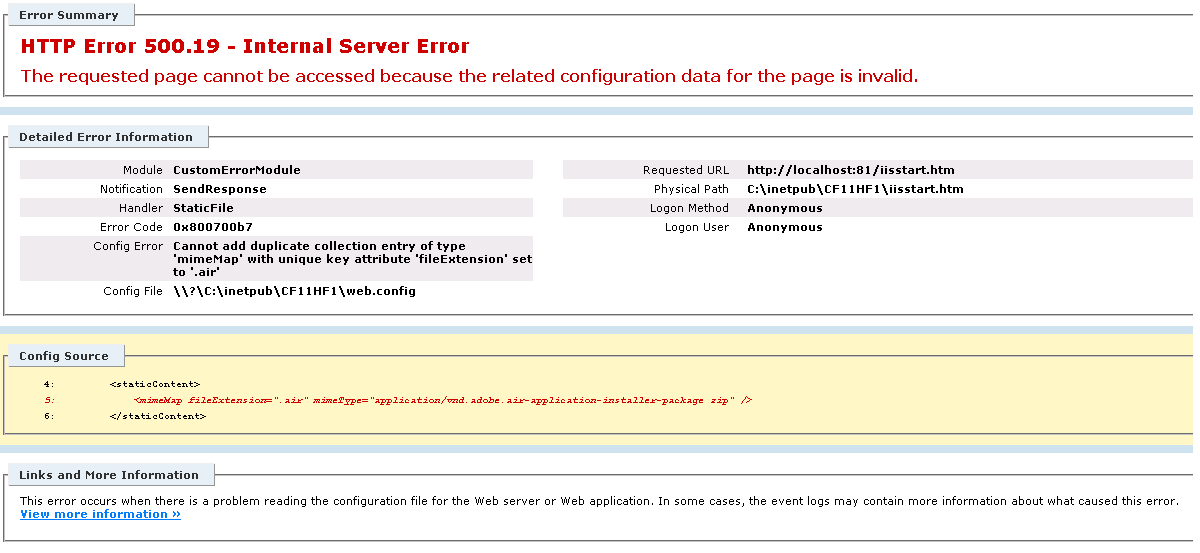
    Here’s a little trouble shooting tip to bust an IIS HTTP Error 500.19 (Internal Server Error) that may pop up when IIS is configured with ColdFusion 11. The error mostly occurs when IIS is unable to interpret configurations specified in the web.config file.

    In this post I speak about fixing a specific cause of a 500.19, while the ideology can be applied to fix similar errors.

    When a connector is configured with IIS, ColdFusion attempts to register required MimeTypes in IIS. MimeTypes are registered to the server, or to specific site based on the options selected during connector configuration. Now, there is a good possibility some of these MimeTypes may be already added by other third party applications. Now what happens is a debacle. ColdFusion attempts to register a MimeType, and IIS puts this into a web.config file, and since this entry is actually a duplicate, IIS fails to serve any pages off the affected sites, and throws a 500.19.

    Here is one such error. The duplicate MimeType added in this case, is .air
    MimeError

    All we need to do to get around this error, is to either unconfigure the connector, navigate to IIS Manager > Site in Consideration > MimeTypes, remove the entry that references .air extension, and reconfigure the connector, OR, If you are confident enough to play around with you server, the web.config file itself can be edited to reflect appropriate settings.

    While that should get rid of the 500.19, this particular issue is being tracked, and will be resolved in a future release of ColdFusion.

  • ColdFusion 11 – Manually remove connector configuration

    This post deals with removing connector residues on web-servers, IIS and Apache, if and when the wsconfig utility is not available for un-configuring existing connector configurations.

    Connector residues are left behind with incorrect uninstallation of ColdFusion Getting Started servers, or more simply, the ZIP Installers. The right way to get rid of a Getting Started server, would be to check and remove any existing connector configurations, and then delete the extracted ColdFusion directory. Failing to do this may result in connector residues strewn on IIS or Apache, and future connector configurations may behave unexpectedly, or on the extreme end, stop the web server from firing up!

    Below are a handful of steps to remove ColdFusion connector residues on Internet Information Services (IIS):

    1. Verify ColdFusion connector is the culprit before proceeding
    2. Open Internet Information Services (IIS) Manager
    3. Select Server / Machine Name > Default Document and delete entry for index.cfm
    4. Select Server / Machine Name > ISAPI and CGI Restrictions and delete entries that point to the ColdFusion install directory
    5. Select Server / Machine Name > ISAPI Filters and delete entries that point to the ColdFusion install directory
    6. Select Server / Machine Name > Handler Mappings and delete entries with paths, ‘*.cfc’, ‘*.cfm’, ‘*.cfml’, ‘*.cfr’ or ‘*.cfswf’
    7. Repeat the steps 3 to 6 for all sites configured with ColdFusion
    8. Delete contents of the /ColdFusion11/config/wsconfig/CONFIGURATION_NUMBER/ directory, if it contains filenames starting with ‘isapi’
    9. Restart IIS / sites
    10. Delete ‘.air’ mapping from MIME Types, if it causes any issues

    Further, here are some steps to remove ColdFusion connector residues on the Apache Web Server:

    1. Locate the Apache conf directory
    2. Find the mod_jk.conf file. Delete it
    3. Open the file, httpd.conf (apache2.conf on Ubuntu)
    4. Scroll down right to the bottom. Remove the entry that refers to the mod_jk.conf file
    5. Delete contents of the /ColdFusion11/config/wsconfig/CONFIGURATION_NUMBER/ directory, if it contains filenames starting with ‘mod_jk’
    6. Restart Apache